Is your logo blurry or pixelated? Here is how to vectorize a logo (PNG/JPG to SVG) for free in 1 minute
You no longer have the source file, only a JPG sent via WhatsApp or a PNG that's too small. PixelToPath recreates crisp paths: an SVG usable on the web, a poster, or a business card - without Adobe Illustrator.
How to vectorize a logo in 3 steps (1 minute)
No paid software, no account. The JPG or PNG you already have becomes a crisp SVG.
Upload the PNG or JPG
Drag and drop the logo file: website export, scan, screenshot, client attachment. The larger and more contrasted it is, the cleaner the trace will be.
Choose the logo preset
Black & White for a logotype or a monochrome icon. Poster if the logo has a few flat colors. Avoid Photo: too much detail weighs down a logo without making it crisper.
Download the fixed SVG
Convert, preview, download. A single file, crisp from the size of a favicon to that of a storefront sign.
Before / After: a pixelated logo, then fixed
This is the most common case for freelancers and small businesses: the only available file is a raster image. Enlarged, it falls apart. Vectorized, it becomes a usable path again. The two examples below show the same motif: on the left, an export that is too small (the enlarged JPG/PNG effect); on the right, the crisp SVG that PixelToPath aims for.


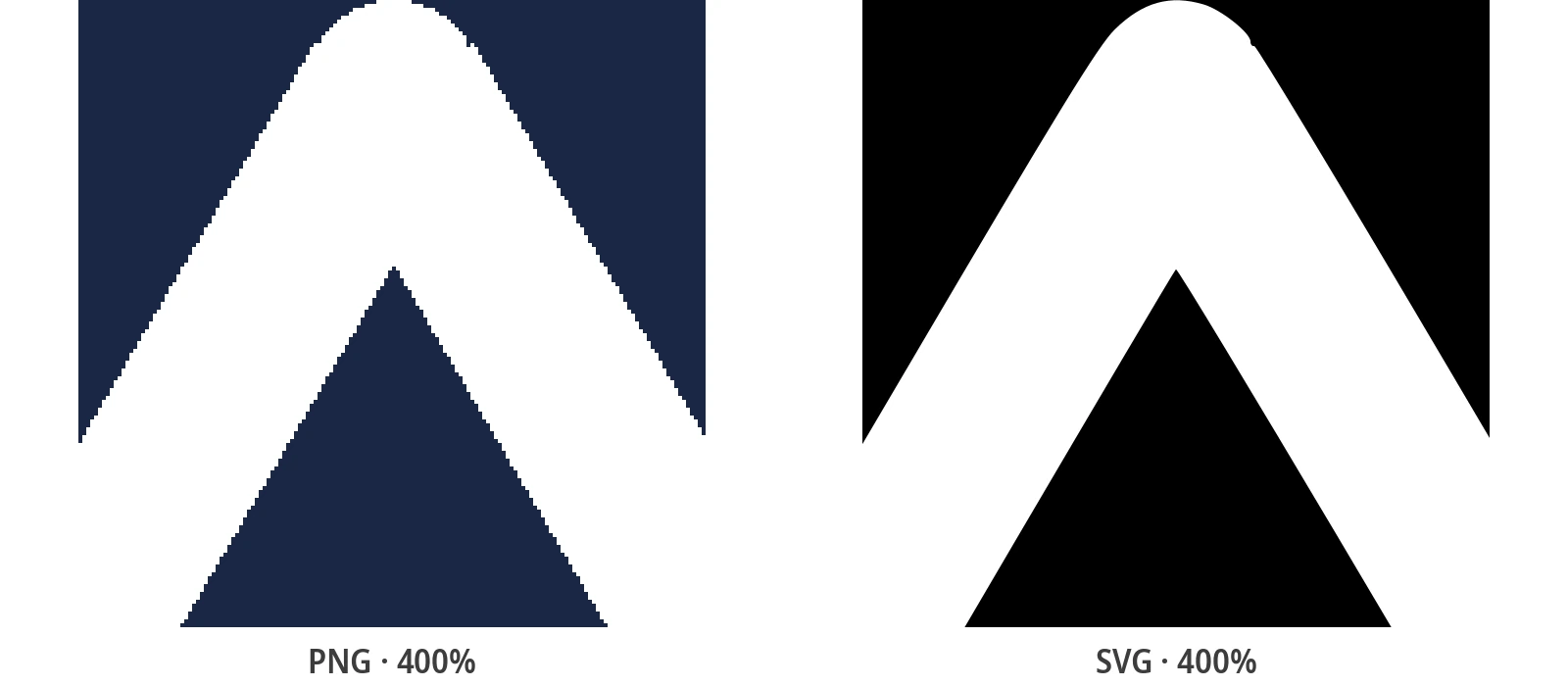
These visuals are illustrations of the problem, not screenshots of your brand. The good candidate: logo, initials, icon, simple shapes. A photorealistic or heavily gradient logo will remain an approximation.
Why does your JPG or PNG logo get blurry?
A JPG or PNG logo is not a drawing: it's a photo of that drawing, a fixed grid of pixels. As long as you display it at its original size - a thumbnail in an email, a LinkedIn avatar - it works. The day you enlarge it for a poster, a Retina website, a business card, or a sign, each pixel becomes a visible square. The JPG also adds artifacts around letters and flat colors: a halo, noise, and jagged edges.
The scenario is almost always the same. The designer delivered an .ai or .svg years ago, and the file is lost. What remains is a PNG from the website, a JPG compressed by a social network, sometimes a photo of the logo on a window. Rebranding a complete identity in Adobe Illustrator is expensive and time-consuming. You don't need a new logo. You need to fix the one you already have.
Vectorizing a logo is fixing it
Vectorizing is not "magically enhancing" a photo. It's replacing the pixel grid with curves: SVG paths that the screen, printer, or cutting machine redraw at any size. PixelToPath traces the outlines of the PNG or JPG and gives you an SVG file - the format that printers, developers, and cutting software expect.
In practice, once the logo is in SVG:
- Crisp at all sizes: 32px favicon, website header, 2m banner, vehicle wrap - the same file
- File often much lighter than a @2x PNG, therefore faster to load on a website
- Editable: open it in Inkscape, Figma, or Illustrator to change a color or isolate an icon
- Professional deliverable: you can finally send "the vector logo" to the printer, developer, or client
What file to upload for a good trace?
PixelToPath cannot invent details that the image no longer has. Start with the least bad original you have:
- The largest file available: an 800px PNG vectorizes better than a 120px thumbnail, even if blurry
- Prefer a transparent PNG over a compressed white background JPG; crop unnecessary margins
- A logo with flat colors, solid letters, and few gradients: this is the ideal case. A complex gradient or a photo shadow will be simplified
- If you have multiple versions (black, color, icon only), vectorize them one by one: a clean file for each variant
Do you need Adobe Illustrator to vectorize a logo?
Illustrator remains the reference tool if you are redrawing an identity by hand, or if the source .ai file still exists. The Image Trace feature is powerful - and paid, with a learning curve. Figma does not vectorize a JPG: it displays it. Inkscape does it, for free, but you need to install the software and adjust the bitmap tracing.
If your need is: "I have a PNG, I need a crisp SVG today", PixelToPath is the shortest route. Free, in the browser, no account. You get an SVG that you can always refine later in Inkscape or Illustrator if an anchor or a color needs adjusting.
Why fix the logo with PixelToPath?
The source file is gone. The design subscription is not in the budget. You only have the website PNG - and one minute.
Free, no watermark
No Creative Cloud subscription for a trace. As many logo variants as you want, at zero cost.
One minute, not a redesign
Upload, preset, export. You fix the existing file instead of hiring a designer for a simple SVG.
Logo = sensitive file
Images are processed then discarded. Nothing is stored. Suitable for brand guidelines and identities under NDA.
Presets made for logos
Black & White for monochrome, Poster for flat colors. You control the detail before downloading.
Offline batch
Multiple versions (icon, horizontal, inverted)? The open source Windows / Linux app processes them on your machine.
PNG, JPG, BMP, WebP
It doesn't matter if the client sent a WhatsApp JPG, a WordPress PNG, or a WebP export: just one tool.
Where a fixed SVG logo changes everything
As soon as the file is vector, you stop tinkering with PNGs that are too small:
- Website and social media: a crisp Retina header, a clean favicon, no more blurry logo on the homepage
- Print: poster, flyer, roll-up, business card - the printer asks for vector, you have it
- Signage, wrapping, wayfinding: enlarge without fearing pixelation
- Freelance deliverable: send the client an SVG + a PNG version back, even if you only received a JPG
- Apparel and merch: flex, embroidery, screen printing - workshops work from paths, not a compressed JPEG
Keep the JPG for photos. Fix the logo in SVG. It's the action that printers and web developers expect, and that many small businesses have never been able to do without Illustrator.
Related Conversion Guides
The logo is just one case. Here are the other PixelToPath tutorials.
Frequently Asked Questions
I only have the logo in JPG, is that enough to get an SVG?
Yes, that's exactly the use case. Start from the largest JPG or PNG you have. A file that is too small (under 200 px) will result in an approximate trace: PixelToPath follows what is still visible, it doesn't "hallucinate" missing letters. If the logo is readable on screen, the vectorization has a good chance of being usable.
Do I need Adobe Illustrator to vectorize a logo?
No. Illustrator is useful for redrawing or retouching by hand. To transform a PNG/JPG into an SVG, PixelToPath is enough: free, no installation, no account. You can open the SVG later in Illustrator, Inkscape, or Figma if you want to tweak a node.
Will the SVG be identical to the original logo?
On a logo with flat colors, solid letters, and clean outlines: very close, often indistinguishable in use. Gradients, photo shadows, textures, and very fine lines will be simplified. Always check the preview before sending the file to the printer. A quick retouch in Inkscape is still possible: the SVG is an editable file, not a flat image.
Which preset should I choose for a color logo?
Poster for a logo with a few flat colors (blue + orange, for example). Black & White for a monochrome version, a stamp, or a single icon. Photo only if you want a stylized effect: it's not the right mode for a professional logotype.
Can I use this SVG for a large format poster or a sign?
Yes: that's the whole point of vector graphics. An SVG has no "resolution". Check that the shapes are closed and the colors match the brand guidelines (printer swatches, RAL, etc.). For wrapping or cutting, the Black & White preset often produces the cleanest paths.
Fix your blurry logo in one minute
Upload the PNG or JPG you have, download the SVG. Free, no account, no Illustrator.
Support Open Source Development
PixelToPath is free to use. If this tool helped you save time, consider buying me a coffee.
❤️ Donate via PayPal