How to Batch Convert PNG to SVG (5 Methods Compared)
Five tested ways to convert multiple PNG files to SVG at once - online tools, a hot folder, free desktop apps, scripts and an API - compared on cost, throughput, color support and privacy.
The Batch Problem - and the Trap to Avoid
You have ten PNGs. Or four hundred. Or - like the designer whose 51,000-file question opens one of the longest threads on Adobe's community forums - an entire asset library that needs to become vector. Converting one image by hand is fine; past that point you need a batch workflow: one process that turns a whole folder of rasters into a folder of SVGs. And if today it really is just one important file, the free online PNG to SVG converterdoes the job in under a minute - this guide covers everything beyond that.
One definition before comparing methods. Real batch conversion means every PNG is vectorized: its shapes are re-drawn as mathematical paths, which is what vectorization actually does. A lot of tools skip that step entirely, and it changes everything about the output.
The #1 failure mode: some "SVG converters" don't trace anything - they wrap your PNG inside an .svg file as an embedded image. The result scales "perfectly" because it is still a bitmap in a trench coat. Open any output file in a text editor: one giant base64 <image> tag instead of <path> elements means you didn't vectorize anything. Every method below is judged on real tracing.
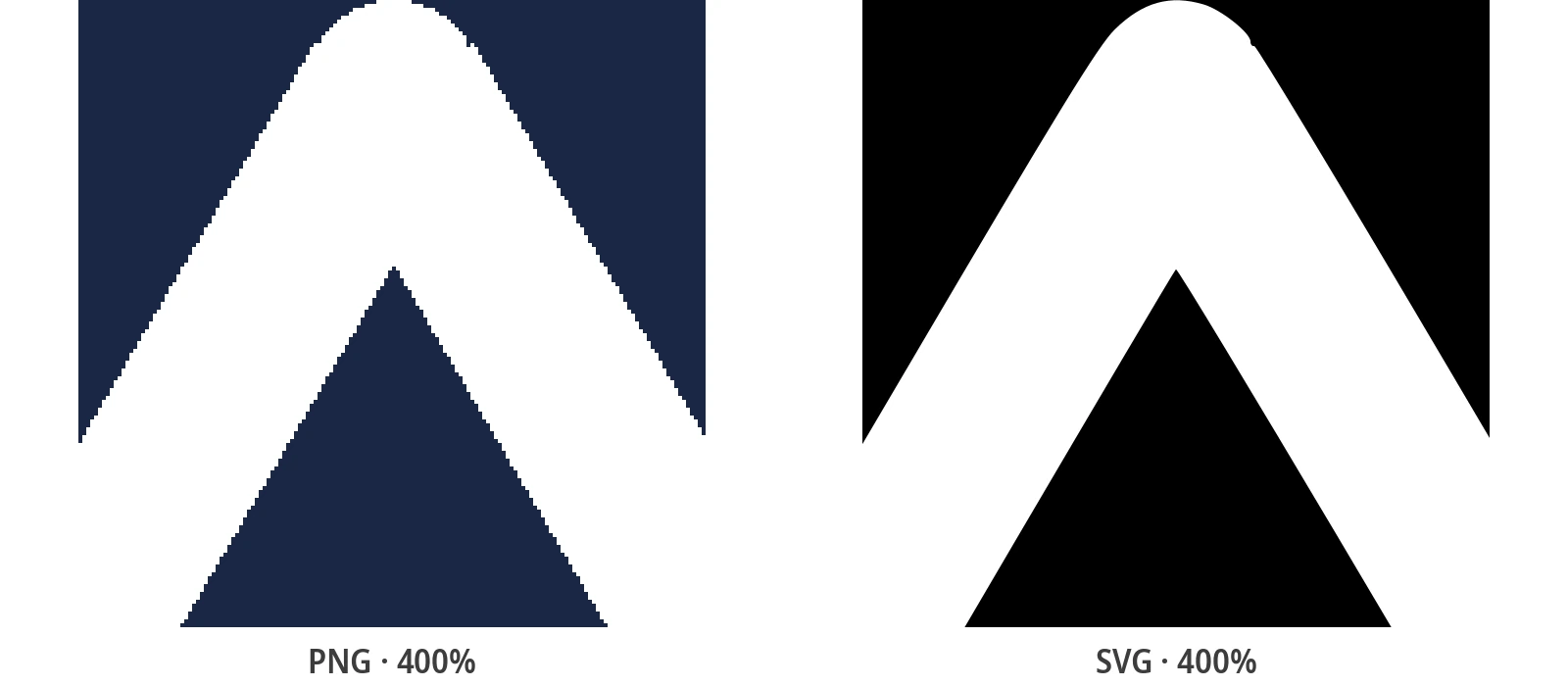
Real results from the converter


Method 1: Online Batch Converters
The fastest route for a small batch. Several online tools accept multiple files at once: to.imagestool.com lets you drag and drop a set of PNGs and processes them locally in the browser; Pixelied takes bulk uploads and hands you a ZIP of results; ImageResizer.com and reaConverter's web trial work the same way. No install, no command line - drop the files, download the results.
Two checks before you trust one with real work. First, make sure the tool actually traces: some "batch" sites just loop single-file conversions on a server and return a ZIP of pseudo-SVGs - the embed trap from the warning above. Second, read the privacy terms if the artwork is commercial or under NDA: browser-based tools never upload your files, server-based ones send every image to someone else's machine. For transparency: PixelToPath's own free online converter is deliberately single-file. It is the right tool for the one important logo, not for a folder of four hundred - and it is in this comparison as exactly that.
Method 2: A Desktop App with a Hot Folder (PixelToPath Pro)
If batches are a weekly occurrence rather than a one-off, a hot folder removes the manual step entirely. PixelToPath Pro (Windows and Linux) watches a folder and converts every image that lands in it, automatically. The whole flow is four steps:
- Pick your folders: choose the folder to watch and the output folder where the SVGs should go.
- Drop your PNGs: save, copy or drag the whole batch into the input folder - ten files or several hundred.
- Let it work: every file is traced on arrival with your saved settings profile, entirely on your machine.
- Collect the SVGs: results appear in the output folder, named after the original files.
The part that matters for batches: one settings profile applies to the entire queue. Convert four hundred icons by hand and file 300 never quite matches file 12; with a profile, every output is consistent - the detail that kills manual workflows. Everything runs locally, so there is no upload ceiling and no file ever leaves your machine. Pro is €39 one-time (excl. VAT), a lifetime license for one user on up to 3 machines; the hot-folder batch conversion page breaks down everything included. It is one option among five here - but it is the only one built to make batch conversion a step you stop thinking about.
Method 3: Free Desktop Apps and Inkscape
Already using the free desktop app? It converts PNG, JPG, BMP and WebP to SVG offline, with no file-count limit and full access to the advanced tracing settings - but one file at a time. Batch is exactly what the Pro upgrade adds, and it is worth saying plainly rather than pretending otherwise. If you want free, local and GUI-based, the free desktop converter is the honest single-file choice: realistic throughput is tens of files per day, not hundreds.
Inkscape is the other free workhorse. Its Trace Bitmap dialog is single-image too, and while Inkscape ships command-line options that can be scripted into a loop, the experience is rough and barely documented. GIMP, for the record, has no native batch vector export at all - its forum threads confirm it regularly. Before committing hours to a GUI workflow, check that you actually need vectors for every file: the SVG vs PNG for the web comparison covers when the conversion is worth it.
Method 4: Command-Line Scripts (ImageMagick, Potrace, VTracer)
For one-off bulk jobs, a ten-line shell script beats every GUI. The classic black-and-white pipeline chains ImageMagick into Potrace - convert, then trace: magick input.png input.pbm && potrace -s -o input.svg input.pbm
Wrap that in a for-loop over your folder and Potrace outputs true vector paths at the speed of your CPU - but strictly in black and white. For color, point the same loop at vtracer, the open-source Rust tracer that also powers PixelToPath. Both tools carry enough flags to fill a manual, which is why each has a dedicated guide (linked here once published). Scripts win on cost (free), privacy (local) and volume (thousands per run); they lose on the way in - you are maintaining a pipeline, and nobody reimburses the afternoon it breaks.
Method 5: An API Loop for CI and Server-Side Work
When conversions have to happen on a server - during a deploy, inside a build pipeline, from a backend - local tooling stops being an option. The pattern is a loop: one stateless POST per image with your Bearer key, each SVG written straight into your asset pipeline. The limit is 60 requests per minute per key, so pace the loop and retry rate-limited calls with exponential backoff; failed calls never consume credits. You can automate the whole batch with the REST API with no local installs at all - which is precisely the point.
The cost math is predictable: prepaid images run from €0.05 down to €0.01 each at volume, so 500 images cost about €20 and 10,000 about €200 - and every account adds 10 free conversions on top, every month. Pick the API when conversions must be reproducible, server-side and free of local dependencies. Pick a hot folder when they are local and interactive. The two cover nearly every real-world batch.
Batch PNG to SVG: All Five Methods Compared
Same input, five very different contracts. Cost and privacy are structural, not promotional; throughput assumes one operator (or one modest server) on realistic hardware; and "color" means true multi-color vector output, not a black silhouette.
| Method | Cost | Files/day (realistic) | Color | Quality control | Privacy | Skill needed |
|---|---|---|---|---|---|---|
| Online converters | Free | 50-500 (manual) | Depends on tool | Presets only | Varies - check terms | None |
| Pro hot folder | €39 one-time | 1,000s (local CPU) | Yes | One profile, full settings | 100% local | None |
| Free desktop / Inkscape | Free | 20-100 (one at a time) | Yes (single files) | Full, per file | 100% local | Basic |
| Scripts (CLI) | Free | 1,000s+ (local CPU) | Potrace no - VTracer yes | Full (flags) | Local | Command line |
| API loop | 10 free/mo, then €0.01-0.05/image | 10,000s (60 req/min) | Yes | Engine params per call | Files uploaded | Developer |
If you convert batches more often than once a month, Methods 2 and 5 pay for themselves in the first afternoon. For everything smaller, Method 1 or 3 costs nothing but a little of your time.
Related Conversion Guides
Batch conversion is step one. These cover the rest.
Frequently Asked Questions
Can I batch convert PNG to SVG for free?
Yes, two ways. Command-line scripts (Potrace, ImageMagick, VTracer) are free with no file limits, and the free desktop app plus Inkscape are free but convert one file at a time. Online tools that accept multiple files for free exist too - just verify that they truly vectorize and read their privacy terms before sending commercial artwork.
How do I keep the colors when batch converting?
Use a color tracer. Potrace is strictly black-and-white no matter how you script it; VTracer, PixelToPath Pro and the PixelToPath API all run a color engine that rebuilds each color region as its own vector shape. Script the loop with vtracer, or use Pro or the API if you would rather not maintain it.
Can I upload a ZIP of PNGs and get a ZIP of SVGs?
Some online tools (Pixelied, for example) take bulk uploads and return a ZIP. Desktop batch modes and scripts write results into an output folder you can zip in one step. The API returns one SVG per call, so archiving stays on your side - which is usually what a build pipeline wants anyway.
Why did my batch come out as black rectangles?
That is the embed trap: the tool wrapped each PNG in an SVG wrapper instead of tracing it, and what you are seeing is the embedded raster failing to display. Open one output file in a text editor - a single base64 <image> tag confirms it. Re-run the batch with a tool that outputs real <path> elements.
I have 50,000 files. What actually works?
A hot folder or the API - everything else caps out long before that. At 60 requests per minute, the API clears 50,000 images in about 14 hours of wall-clock time for roughly €200 in prepaid credits. A local hot folder does the same job offline, with throughput set by your CPU. Both keep the settings identical across the entire run.
Ready to Clear Your PNG Backlog?
Convert a single file in the free online tool, set up a hot folder in Pro, or loop the API - every route ends in clean, real vector paths.
Support Open Source Development
PixelToPath is free to use. If this tool helped you save time, consider buying me a coffee.
❤️ Donate via PayPal